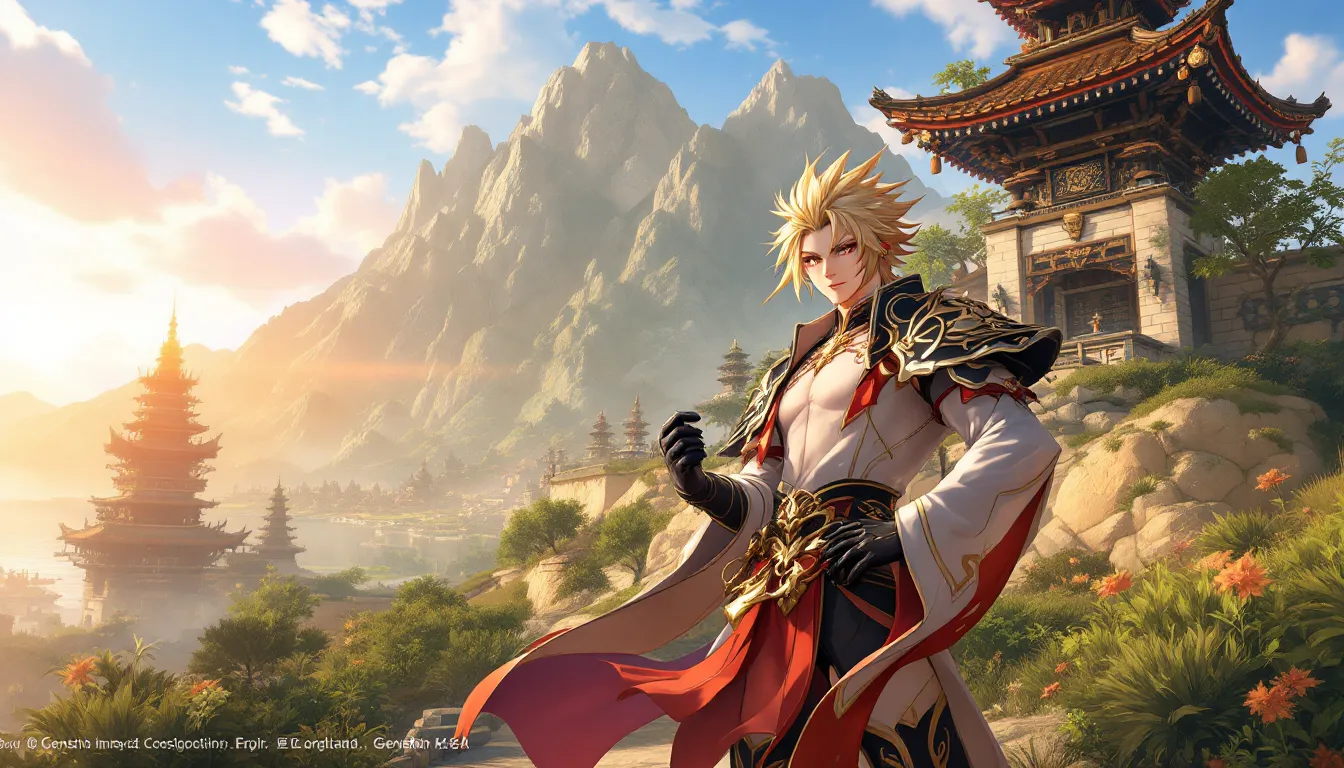
In a game as visually stunning as Genshin Impact, capturing the perfect screenshot is more than just preserving a memory, it’s about showcasing the artistry that miHoYo has packed into Teyvat. Whether you’re commemorating your first five-star pull, framing an epic boss defeat, or simply admiring the landscape of Fontaine, knowing how to take quality Genshin Impact screenshots transforms your experience from casual gameplay to creative expression. The game’s dynamic lighting, intricate character designs, and breathtaking environments deserve more than a careless button press. This guide walks you through every tool, technique, and platform-specific method you need to capture shots that rival official promotional material.
Table of Contents
ToggleKey Takeaways
- Genshin Impact’s native in-game screenshot mode captures at full graphics quality and resolution, making it superior to platform-specific tools for preserving the game’s visual fidelity.
- Using the rule of thirds, leading lines, and strategic depth layering transforms a Genshin Impact screenshot from a simple capture into a compositionally compelling image.
- Golden hour lighting (6–9 AM and 5–8 PM in-game) provides the most flattering, dynamic illumination for character portraits and landscape shots in Teyvat.
- Post-processing with tools like Adobe Lightroom or free alternatives like Snapseed enhances color grading, exposure, and sharpness—but restraint is key to honoring Genshin Impact’s already-gorgeous aesthetic.
- Sharing screenshots with context (explaining the moment or achievement), hashtags, and in thematic collections significantly increases community engagement across Twitter, Instagram, Reddit, and Discord.
- Common issues like blurry screenshots or color banding are resolved by verifying native resolution settings, exporting to PNG format, and ensuring the game’s screenshot mode fully activated before capture.
Why Screenshot Quality Matters In Genshin Impact
Screenshots in Genshin Impact serve multiple purposes, and quality matters for each one. For collectors, a well-composed shot of a limited five-star character is something to treasure. For content creators, streamers, fan artists, and community contributors, sharp, well-framed screenshots become assets for videos, thumbnails, and social posts. The difference between a blurry screenshot taken in motion and a carefully positioned, well-lit one is the difference between something forgettable and something worth sharing.
Genshin Impact’s visual fidelity is one of its strongest selling points. The game runs on a custom engine that prioritizes vibrant colors, realistic reflections, and detailed character animations. When you take a careless screenshot, you’re wasting that technical achievement. A high-quality screenshot, by contrast, captures the intention behind each visual design choice, the way Hu Tao’s crimson outfit pops against a moonlit backdrop, or how Nahida’s elegant animations translate to a static frame.
Beyond personal satisfaction, better screenshots enhance your credibility in the community. Players sharing damage breakdowns, team compositions, or farming routes are taken more seriously when their supporting images are crisp and professional-looking. Even casual sharing on social media gets more engagement when the shot is properly framed and edited. Quality screenshots also make it easier to document game updates, compare character details across patches, or create reference materials for fan content.
Built-In Screenshot Features And Settings
Genshin Impact includes a robust native screenshot system designed specifically for the game, and it’s more powerful than many players realize. The in-game screenshot mode is separate from your platform’s native screenshot function, offering features tailored to capturing Teyvat in its best light.
Accessing The In-Game Screenshot Mode
To access Genshin Impact’s screenshot mode, navigate to Paimon’s Menu (typically the escape key on PC or the menu button on console/mobile). From there, look for the Screenshot option within the main menu, it’s usually near the bottom alongside other settings. Once activated, the game enters a dedicated screenshot mode that hides the HUD (heads-up display), including your character status bar, minimap, and any on-screen notifications.
On PC, pressing the designated screenshot hotkey (customizable in settings) instantly captures the frame without UI clutter. On PlayStation 5 and Xbox Series X/S, you’ll navigate through the menu system, which gives you a moment to position your camera perfectly before taking the shot. On mobile devices (iOS and Android), the screenshot button within the menu works similarly, and the process is straightforward even on smaller screens.
One advantage of the in-game mode is that it captures at your current graphics settings and resolution, meaning what you see is what you get, no surprises with quality degradation.
Customizing Your Screenshot Preferences
Within the screenshot settings, you can tweak several parameters to suit your vision. The hide UI option is the primary toggle, but some versions of the game offer additional customization. Certain regions or updates allow you to control whether specific elements remain visible, for instance, keeping your character name and adventure rank visible while hiding the minimap.
The aspect ratio settings matter if you’re taking screenshots for specific purposes. A 16:9 ratio works best for social media platforms like Twitter or Discord, while a 4:3 ratio might suit phone displays. Some players deliberately choose aspect ratios that enhance their composition, cropping tighter around subjects.
Another subtle but important setting is bloom and effect intensity. In some versions of Genshin Impact, you can tone down post-processing effects to reduce glare or adjust the visual warmth of a scene. This is particularly useful if you’re capturing indoor shots where excessive bloom might wash out details.
It’s worth experimenting with these settings across different lighting conditions and locations. A screenshot taken in Inazuma’s rain looks dramatically different from one in the Liyue desert, and knowing which settings suit each environment takes practice. Some players even adjust settings between shots to create a cohesive visual narrative across multiple images.
Platform-Specific Screenshot Methods
Each platform, PC, console, and mobile, has distinct workflows and quality considerations for taking Genshin Impact screenshots. Understanding the nuances of your platform ensures you’re getting the best possible output.
PC Screenshots For Windows And Mac
On Windows PC, you have two primary options: Genshin Impact’s native screenshot tool and Windows’ built-in screenshot function. The native tool (accessed via the in-game menu) is superior because it renders at your full graphics settings and resolution without any display scaling issues. When you take a screenshot through the game, it’s saved directly to a folder on your hard drive, typically located in Documents > My Games > Genshin Impact > Screenshots.
For highest quality, ensure your game graphics settings are maxed out, Maximum or Very High graphics presets, with resolution set to your monitor’s native refresh rate. If you’re playing on an ultrawide monitor, Genshin Impact’s native screenshots will capture the full field of view, which is perfect for landscape compositions.
Mac users running Genshin Impact through a launcher like CrossOver or Whisky have slightly different considerations. The game may run at lower native resolution depending on your Mac model, so screenshots will reflect those limitations. But, the in-game screenshot tool still works optimally within those constraints. Mac-native screenshots (Command + Shift + 4) can work as a backup, but they capture your entire display and may include UI elements from your desktop.
For PC, consider using NVIDIA GeForce Experience or AMD Radeon Software if you want to capture at higher bitrates or with additional post-processing before saving. But, for most players, the native in-game tool is sufficient and more convenient.
Console Screenshots On PlayStation And Xbox
PlayStation 5 and PlayStation 4 have built-in screenshot functions accessible via the capture button on your controller. You can either use the native PS screenshot function (which captures your TV output) or use Genshin Impact’s in-game screenshot mode. For best quality, use the in-game method because the PS5’s native capture defaults to HDR, which may look oversaturated in some scenarios, the in-game tool gives you direct control.
To share screenshots on PS5, navigate to your Captures section in the system menu, select the screenshot, and share it directly to PlayStation Network or download it to external storage. You can also use the PS app to transfer screenshots to your phone or PC for further editing.
Xbox Series X and Xbox Series S work similarly. The Xbox button on your controller opens the quick menu, where you can capture a screenshot. Genshin Impact’s native screenshot mode, but, is recommended for the same reasons as PlayStation, it ensures consistent quality without platform-level post-processing.
Both consoles support 4K resolution on compatible TVs, and screenshots will capture at that resolution if your console and display support it. If you’re using an older 1080p or 1440p display, shots will reflect that limitation, but the in-game rendering quality remains high.
Mobile Screenshots For iOS And Android
On iOS, open Genshin Impact and navigate to the in-game screenshot menu. The game will hide the HUD and present you with a live preview of your framed shot. Tap the screenshot button, and it’s saved to your Photos app. This method is better than using iOS’s native screenshot button (volume + power) because it eliminates status bar elements and gives you full control.
On Android, the process is nearly identical. Access the screenshot mode through Genshin Impact’s menu, frame your shot, and tap the capture button. The screenshot is saved to your Pictures folder or your camera roll depending on your device settings.
Mobile screenshots are inherently limited by screen resolution, a flagship phone like the Samsung Galaxy S24 or iPhone 16 Pro will capture at higher resolution than a budget device, but the in-game rendering quality is consistent across devices. One advantage of mobile screenshots is that they’re immediately available for social media sharing directly from your phone.
For mobile players, note that battery drain and device temperature can affect game performance, which indirectly impacts screenshot quality. Taking screenshots on a cool device or while plugged in ensures the game runs at optimal performance and visual fidelity before you capture.
Advanced Photography Techniques For Stunning Shots
Beyond pressing a button, there’s an art to composing memorable Genshin Impact screenshots. The game’s camera system is flexible enough to accommodate creative framing, and understanding composition principles elevates your captures from documentation to art.
Framing And Composition Tips
The rule of thirds is a foundational composition principle that works beautifully in Genshin Impact. Instead of centering your character in the frame, position them along one of the invisible gridlines that divide your screen into thirds. This creates visual interest and makes the shot feel more intentional. For example, place a character’s face on the upper-right third intersection while positioning a dramatic landscape element in the lower-left third.
Leading lines guide the viewer’s eye through the photograph. In Genshin Impact, this might be a riverbank leading toward your character, a series of trees receding into the distance, or the architectural lines of a structure. Composing with these natural or constructed lines creates depth and narrative within the frame.
Depth layering is crucial for static shots. Frame your character in the midground with foreground elements (rocks, foliage, structures) closer to the camera and background scenery (mountains, sky, distant buildings) further back. This layering makes a 2D screenshot feel three-dimensional.
When capturing character portraits, the head placement matters. Position the character’s eyes in the upper portion of the frame, following natural photography conventions. Tilt the camera slightly, a perfectly level shot of a character’s face can feel static, while a subtle angle adds dynamism and personality.
Negative space is underutilized in player screenshots. Leaving empty sky, open water, or blank terrain around your subject creates breathing room and emphasizes the main focus. This is especially effective for character close-ups.
Lighting And Time Of Day Optimization
Genshin Impact’s day-night cycle and dynamic lighting are visual assets you can exploit. The golden hour, roughly 6 AM to 9 AM and 5 PM to 8 PM in-game, casts warm, directional light that’s incredibly flattering for character shots and landscape photography. The sun sits at a low angle, creating soft shadows and rich colors.
Midday lighting (11 AM to 2 PM in-game) is harsh and direct, with minimal shadows. This works well for action shots or capturing vibrant environments with punchy colors, but it’s unflattering for character portraits due to harsh shadows across the face. Avoid shooting character close-ups during midday unless you’re going for a specific dramatic effect.
Nighttime (8 PM to 6 AM) introduces new opportunities. Bioluminescent plants in certain regions, the glow of Inazuma’s lanterns, and the ethereal lighting of Sumeru’s underground areas create unique atmospheres impossible to capture in daylight. Night shots tend to feel more intimate and moody, perfect for capturing emotional moments or showcasing specific characters’ aesthetics.
Weather conditions also affect lighting. Rain in Inazuma creates reflective surfaces and softer, diffused light. Snow in Dragonspine provides cool-toned illumination. Fog in certain areas can add mystery and atmosphere. Plan your screenshot sessions around these environmental conditions.
When positioning your character relative to the light source, consider backlighting for an ethereal effect. Position your character so the sun is behind them, creating a subtle halo around their silhouette. This technique requires careful framing to avoid overexposure but creates stunning, cinematic results.
Camera Angles And Positioning Strategies
Genshin Impact’s free camera allows for creative angles that transcend traditional over-the-shoulder perspectives. Low-angle shots (camera positioned below your character, looking up) are dramatic and empowering, they make characters look impressive and heroic. This angle works especially well for characters with impressive silhouettes or weapons, like Raiden Shogun or Hu Tao.
High-angle shots (camera above, looking down) create vulnerability or smallness, perfect for environmental shots that emphasize scale. Positioning your character small against a vast landscape makes them feel like an explorer in an infinite world.
Profile shots (90-degree angle to your character) showcase character design elements that front-facing angles miss. This angle is ideal for displaying weapons, side details on outfits, or unique hair designs. Genshin Impact Cinematics: Experience feature extensive profile views, demonstrating how effective this angle can be.
Extreme close-ups on character faces reveal details invisible from normal gameplay distances. Zoom in until your character’s face fills most of the frame, capturing facial expressions, eye details, and intricate makeup designs. This requires careful positioning to keep the character’s face centered and in focus.
When exploring locations, depth of field simulation can be achieved through careful positioning. Frame closer elements slightly out of focus (by positioning them at screen edges) and keep your intended subject sharp and centered. While Genshin Impact doesn’t have native depth-of-field control, thoughtful camera positioning can create this effect.
Experiment with reflections. Teyvat has plenty of water surfaces, lakes, puddles, rain-slicked surfaces. Position your camera to capture both a character and their reflection, creating a poetic duality. This technique works particularly well during rain or in areas with calm water.
Finally, don’t overlook context. A character standing alone in a void is less interesting than that same character interacting with their environment, standing on a cliff overlooking a vista, examining a landmark, or posed naturally within a location that tells a story.
Editing And Post-Processing Your Screenshots
Taking the screenshot is half the battle: the other half is refining it to match your creative vision. Even slight post-processing can transform a good shot into a memorable one.
Best Tools For Screenshot Enhancement
Adobe Lightroom is the industry standard for photographers and works beautifully for Genshin Impact screenshots. Its intuitive sliders for exposure, contrast, saturation, and color grading are perfect for fine-tuning in-game captures. Lightroom’s presets can also speed up your workflow if you want a consistent aesthetic across multiple screenshots.
Adobe Photoshop offers deeper control for more advanced edits, color grading, selective adjustments, content-aware fills, and composite work. It’s overkill for simple enhancements, but invaluable if you want to create fan art or heavily stylized versions of your screenshots.
For budget-conscious editors, Affinity Photo provides Photoshop-like functionality at a one-time purchase price. It handles layers, adjustments, and advanced editing with professional quality.
GIMP is a free, open-source alternative with surprising depth. While the interface is less intuitive than paid options, it covers cropping, color correction, and basic effects without any cost.
For quick mobile editing, Snapseed (by Google) is excellent. It offers one-tap adjustments, selective editing, and filters specifically designed for photos. Lightroom Mobile brings desktop functionality to your phone, syncing edits across devices.
Simpler tools like Paint.net or Pixlr are sufficient if you only need basic adjustments, no need to use Photoshop if you’re just adjusting brightness or adding a border. The point is to match your tool to your intent.
Common Editing Adjustments And Effects
Color Grading is the foundation of screenshot enhancement. Genshin Impact already has vibrant colors, but subtle adjustments can enhance mood. Boosting saturation slightly makes colors pop without looking oversaturated. Alternatively, selective desaturation (reducing color in specific areas while keeping others vibrant) creates dramatic contrast.
Exposure and Contrast adjustments prevent overexposed or underexposed shots from looking flat. If a character is backlit and their face is too dark, raise the exposure selectively on their face while keeping the background properly exposed. Increasing contrast slightly adds punch and depth.
White Balance correction ensures colors look natural. Genshin Impact sometimes renders with warm or cool color casts depending on the location and time of day. Adjusting white balance can either enhance this intentionally (making a night scene cooler and more mysterious) or neutralize it for accuracy.
Sharpening enhances detail, especially important if you’re zoomed in on character faces or fine textures. A subtle sharpen filter makes character details pop, but overdoing it introduces artifacts and looks artificial.
Clarity (or texture/vibrance adjustments) adds mid-tone contrast without affecting pure blacks and whites. This makes a screenshot feel more three-dimensional and detailed.
Cropping and Framing is post-production composition work. Even if you framed well in-game, cropping tighter during editing can improve the final shot by removing distracting elements or adjusting the rule of thirds.
Lens Correction fixes any distortion introduced by Genshin Impact’s camera perspective (though this is usually minimal). Wide-angle shots sometimes exhibit barrel distortion, which lens correction can straighten.
Vignetting (darkening edges) draws the eye toward the center. A subtle vignette makes the subject feel more isolated and focused, while heavy vignetting creates a cinematic effect.
When editing, remember that restraint is key. Genshin Impact is already gorgeous, your edits should enhance, not fundamentally alter, the image. Players share Genshin Impact PFP screenshots that capture the game’s beauty authentically, and your edits should honor that aesthetic rather than obscure it.
Sharing Your Genshin Impact Screenshots
Once you’ve captured and edited a screenshot worth sharing, it’s time to get it in front of an audience. Different platforms have different best practices for optimal reach and engagement.
Social Media Platforms And Best Practices
Twitter (X) is the primary hub for Genshin Impact screenshot sharing. The platform’s visual-first culture and active gaming community make it ideal for showcasing your work. Tweet your screenshot with relevant hashtags like #GenshinImpact, #GenshinScreenshot, and character or region tags (e.g., #Fontaine, #Hu Tao). The platform now supports high-resolution image uploads, so your carefully crafted screenshot won’t be compressed excessively.
Instagram works well for curated, aesthetically cohesive screenshot collections. Build a gallery of thematically related shots (all featuring a specific character, set in one region, or from a particular season) and post them as carousels or individual posts. Use location tags and relevant hashtags to reach players interested in Genshin Impact photography.
Reddit communities like r/Genshin_Impact and regional subreddits have active users who appreciate high-quality content. Reddit’s algorithm doesn’t favor beauty as much as engagement, so a well-composed screenshot with a compelling caption performs better than one without context. Avoid pure self-promotion, engage with other posts, answer questions, and participate in discussions alongside your submissions.
Discord servers dedicated to Genshin Impact have dedicated screenshot channels. Server communities often feature and celebrate impressive shots, giving you feedback and exposure within a tight-knit group. Many servers have contests rewarding the best monthly screenshots.
TikTok and YouTube Shorts are growing platforms for gaming content. A quick montage of your best screenshots set to music can perform surprisingly well and introduce players to content creation if that interests you.
When sharing, always add context. A screenshot of a character needs a caption explaining the moment, was it a achievement? A fun interaction? An outfit recreation? Context transforms a pretty picture into a story worth engaging with.
Creating Screenshot Galleries And Collections
Instead of sharing individual screenshots, curating a series creates a more compelling narrative. A gallery of all Inazuma locations photographed during sunset tells a cohesive story. A collection of all playable characters in their signature poses becomes a character portfolio. This requires intentional planning but yields more impressive results.
Tools like Google Photos, Flickr, or Imgur let you organize and share large collections with minimal friction. These platforms handle compression better than social media, preserving quality while remaining accessible.
Many fan communities maintain collaborative screenshot databases. Contributing your best shots to these archives (with credit and sourcing properly documented) helps preserve Genshin Impact’s visual history and establishes you as a community contributor.
Season-based collections work well too. After each major patch, create a gallery showcasing new regions, characters, or features. Genshin Impact Chibi content creators often build collections around adorable moments, and this same approach applies to serious photography.
If you’re building a personal website or portfolio, organize your screenshots by category: characters, landscapes, cinematic moments, and technical achievements. High-quality presentation of your work, proper compression, consistent formatting, and thoughtful arrangement, elevates it from casual sharing to professional-looking galleries.
Troubleshooting Common Screenshot Issues
Even experienced players encounter technical hiccups when capturing screenshots. Understanding common problems and their solutions prevents frustration.
Low Resolution or Blurry Screenshots typically stem from the game running at lower graphics settings or at a resolution below your monitor’s native maximum. Check your graphics settings and ensure resolution is set to your monitor’s native resolution (e.g., 2560×1440 for a 1440p monitor). If screenshots remain blurry, verify your monitor’s refresh rate settings in Windows Display Settings or Mac System Preferences.
Color Banding or Posterization (visible color gradations instead of smooth transitions) occurs when the game compresses color information. This is a limitation of JPG compression. When saving screenshots, ensure your editor exports to PNG format, which preserves more color information. If using the native in-game screenshot tool, check if there’s a file format option, PNG is superior to JPG for this purpose.
Overexposed Bright Areas happen during high-contrast scenes (bright sky, direct sunlight). This is partially unavoidable due to game engine limitations, but you can mitigate it by adjusting the camera angle to reduce glare sources in the frame or by editing the exposure down in post-production.
HUD Elements Not Disappearing means the screenshot mode didn’t fully activate. Return to the main menu and ensure you’ve selected the screenshot mode from the dedicated menu option, not just pressed a hotkey while in-game. Some UI elements (like damage numbers) may require you to close menus or dismiss notifications before entering screenshot mode.
Screenshots Saved to Wrong Location (especially on PC) can be remedied by checking your game installation folder. Genshin Impact saves screenshots to a specific directory, on Windows, that’s typically Documents > My Games > Genshin Impact > Screenshots. You can manually navigate there to locate lost screenshots.
File Corruption or Screenshots Won’t Open occasionally happens if the game crashes during screenshot capture. This is rare but frustrating. If a screenshot file won’t open, try moving it to a different folder and opening it with an alternative image viewer. Alternatively, retake the shot, one corrupted file isn’t worth the troubleshooting time.
Performance Lag When Taking Screenshots can occur on lower-end devices. Close background apps, reduce in-game graphics settings temporarily, and ensure your device has adequate free storage. Taking screenshots requires temporary storage space, so a nearly full drive can cause issues.
Screenshots Showing Wrong Aspect Ratio typically means your aspect ratio setting in-game doesn’t match your monitor or display. Check both your game settings and your display settings to ensure they’re aligned.
For mobile players, out-of-storage errors when attempting screenshots require clearing cache or deleting old screenshots to free space. Navigate to your device settings and check storage usage.
One additional tip: always test your screenshot workflow before attempting to capture an important moment. Take a practice shot, verify it saved correctly, and check the quality. This prevents the disappointment of realizing post-event that your special screenshot didn’t save or came out corrupted.
If you’re troubleshooting on console, ensure your console has the latest system update and that Genshin Impact itself is fully patched. Outdated software can cause screenshot and image-saving issues. Resources like IGN’s guide library and Twinfinite’s how-to articles often have additional troubleshooting steps if these basic solutions don’t resolve your issue. For Japanese gaming news and updates, Siliconera frequently covers Genshin Impact patches and technical improvements.
Conclusion
Taking perfect screenshots in Genshin Impact bridges the gap between playing the game and celebrating it. Whether you’re documenting a cherished character moment, showcasing impressive scenic photography, or contributing to fan communities, the technical skills and creative approaches outlined here elevate your captures beyond casual gameplay documentation.
The journey starts with understanding your platform’s native tools, Genshin Impact’s built-in screenshot mode is powerful enough for most players without requiring external software. From there, deliberate composition choices, lighting awareness, and strategic camera positioning transform ordinary frames into compelling images. Post-processing is the final refinement layer, enhancing without overwhelming the original capture.
As you continue playing Teyvat and upgrading your screenshot game, remember that consistency and practice matter most. Your first portraits won’t match your hundredth, and that’s the point. Each screenshot teaches you something about framing, timing, or editing that informs the next one. Sharing your work with communities exposes you to other players’ techniques, inspiring new approaches.
The Genshin Impact Archives contain countless guides and resources for improving every aspect of your gameplay and creative expression. Use the tools available, experiment fearlessly, and most importantly, enjoy the process of capturing Genshin Impact’s beauty. Your screenshots are your perspective on a world worth preserving.